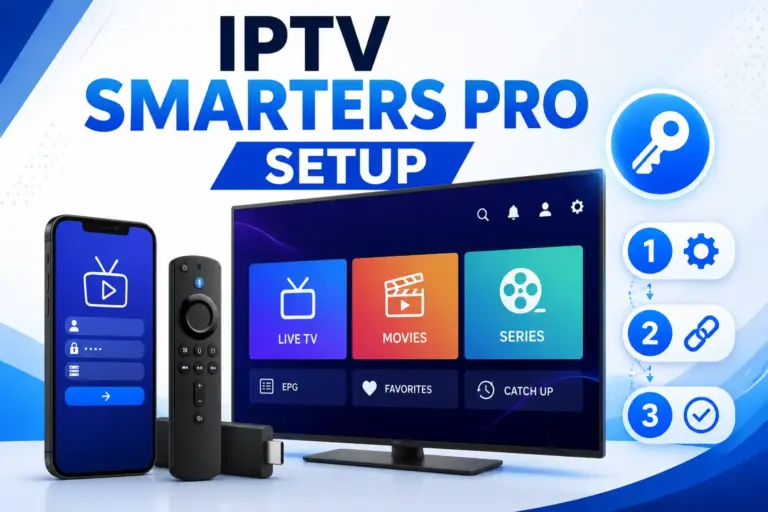
IPTV Smarters Pro on Samsung Smart TV (Tizen): 2026 Setup Guide
Install IPTV Smarters Pro on your Samsung Smart TV in 5 minutes – step-by-step Tizen setup with Xtream Codes, plus the Smart IPTV method and troubleshooting.
Get a Free 24h Trial View Plans

Before You Start
Installing IPTV on a Samsung Smart TV (Tizen) takes about five minutes. You’ll need: an active subscription with your Xtream Codes login (we send it by WhatsApp), your Samsung TV online, and a stable connection – 15 Mbps+ for HD, 25 Mbps+ for 4K.
Install IPTV Smarters Pro on Samsung Tizen
- Step 1 – Connect your TV: Make sure your Samsung TV is on the internet (Settings → General → Network). Ethernet or 5 GHz Wi-Fi is best for 4K.
- Step 2 – Open the Samsung App Store: Press the Home button, open Apps, and search for IPTV Smarters Pro (or Smart IPTV if Smarters isn’t listed for your model).
- Step 3 – Install the app: Select the app and choose Install. Open it once installed and accept the terms.
- Step 4 – Choose Xtream Codes login: In IPTV Smarters Pro, tap Login with Xtream Codes API. (For Smart IPTV, you’ll add your M3U to your MAC at siptv.app instead.)
- Step 5 – Enter your details: Type any name, then the Username, Password and Server URL we send by WhatsApp – exactly as written (they’re case-sensitive).
- Step 6 – Start watching: Tap Add User. Your Live TV, Movies, Series and EPG load automatically. Done.
Alternative: Smart IPTV (siptv.app)
If IPTV Smarters Pro isn’t in your model’s store, use Smart IPTV: install it from the Samsung store, note the MAC address it displays (how to find it), add your M3U playlist to that MAC at siptv.app, then restart the app.
Troubleshooting Samsung IPTV
- Invalid login: re-check username/password/URL for typos (case-sensitive); confirm the subscription is active.
- Buffering: switch to Ethernet/5 GHz Wi-Fi; 4K needs 25 Mbps+.
- App missing from store: use the Smart IPTV method above, or a Fire Stick.
- Channels missing: fully close and reopen the app to refresh; still stuck? contact support.
Samsung IPTV: FAQ
How do I install IPTV Smarters Pro on a Samsung Smart TV?
On Samsung (Tizen) TVs, open the Samsung App Store, search for an IPTV player (IPTV Smarters Pro or Smart IPTV), install it, open it and log in with the Xtream Codes username, password and server URL we send you. If Smarters is unavailable in your region’s store, use Smart IPTV with your M3U/MAC.
Is IPTV Smarters Pro available on Samsung Tizen?
Availability varies by model and region. Where it is in the Samsung store, install and log in with Xtream Codes. Otherwise the Smart IPTV (siptv.app) app is the proven alternative on Tizen.
What is the Smart IPTV app and MAC address method?
Smart IPTV is a popular Tizen player. You note the MAC address it shows, add your M3U playlist to that MAC at siptv.app, then reload the app. Here is how to find your MAC address.
Why won’t my Samsung TV log in to IPTV?
Almost always a typo – the username, password and server URL are case-sensitive. Re-enter carefully, confirm your subscription is active and the TV is online. Restart the app to refresh the playlist.
Do I need a box if I have a Samsung Smart TV?
No – a Samsung Smart TV runs IPTV natively through Tizen apps, so no extra box is needed. If your model can’t install a player, a cheap Fire Stick is the easy fallback.
Watch IPTV on Your Samsung TV Today
Get a free 24-hour trial login and stream 35,000+ channels on your Samsung Smart TV – no box required.
Similar Posts
IPTV Smarters Pro Setup Guide for Australia (Firestick, Android, Smart TV)
Step-by-step IPTV Smarters Pro setup for Australia: download, Xtream Codes login and setup on Firestick, Smart TV, Android & iOS, plus troubleshooting.